
Top 5 Apps With Free VS Paid Options Parental Controls For Android And iOS 2026
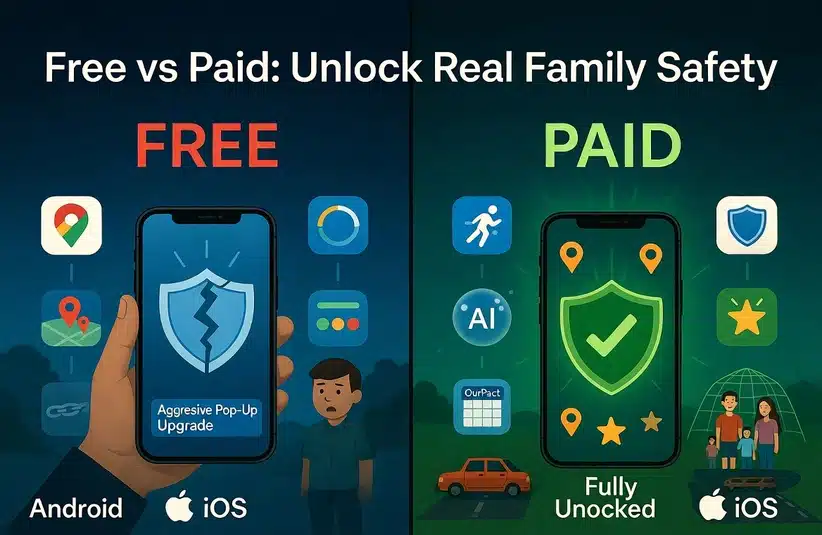
As parents, we want to ensure that our children are safe, online, and in the real world. What are the best Parental Control apps, what do they offer, and what limitations do they struggle with? As with any free app, there will be constant pop-ups trying to get you to upgrade to their paid tiers in order to get the most value out of the app. In an effort to find the best, they are categorized by rating and their respective app store vote counts.
Top Parental Control Apps (Free vs Paid Compared)
1. A Physical World Safety Net: Life360: Stay Connected & Safe
[4.4 Play Store (2.18M votes); 4.8 App Store (2.6M votes)]
Free Version: Pros
- Real-Time Tracking: Live tracking for the whole family. Eliminates location query texts.
- Basic Place Alerts: 2 geofence location alerts + arrival/departure notifications.
- Driving Summary: Weekly driving summary for all members (such as top speed).
- Tile Integration: Tiles tracked in the map interface (wallet, keys, backpack).
- Battery Monitoring: See battery percentage of all devices, distinguishes between “stopped” and “dead phone.”
Free Version: Cons
- History Gaps: Only 2-day history, very little use.
- Two Geofence Limit: Only two locations for geofence, not optimal for active families.
- Battery & Data: Always-on GPS pings drain older batteries/data.
- Privacy History: past scrutiny for selling anonymized location data (though policies have been tightened).
Paid Version: Pros (Silver $7.99/m | Gold $14.99/m | Platinum $24.99/m)
- Emergency Dispatch: Automatic notification to emergency services and family immediately after a collision.
- Extended History: Provides location history (Silver: 15 Days | Gold/Platinum: 30+ Days).
- Place Alerts: Best for families on the go (Silver: 5, Gold: 30, Platinum: Unlimited).
- Roadside Assistance: Includes towing (5 miles for Gold / 50 miles for Platinum), jumpstarts, and lockouts.
- Financial Protection: Stolen Phone Coverage (up to $500) and Stolen Funds (up to $1M)
Paid Version: Cons
- Price Point: $7-$25 per month
- Inconsistent Roadside Assistance: Wait times or out-of-network issues in remote areas.
- Technical False Positives: Crash detection is sensitive and can trigger when dropped or slamming a car door too hard, resulting in family panic.
- Device Compatibility: Some Platinum features, such as ID theft protection, only apply to the primary account holder, not the whole circle.
- Privacy-Invasive: Individual Driver Reports (phone usage, hard braking) can erode trust.
2. Time Out On The Screen Time: Kids360-Alli360: Parental Control
[4.2 Play Store (268K votes); 4.3 App Store (4.5K votes)]
Free Version: Pros
- App Use Stats: Clear breakdown of what apps are used and for how long.
- Basic Location Tracking: Real-time GPS tracking.
- Loud Signal: Can send a loud alarm to the phone even if it is on silent.
- Non-Gaming Whitelist: Essentials remain available so you never lose contact (Calls, texts, calculator).
- Habit Tracking: See the basic history of how screen time is distributed throughout the week.
Free Version: Cons
- No Enforcement: The free version is mostly diagnostic. Cannot stop/limit without upgrading.
- Delayed Data: Live stats can lag by several minutes.
- Consent Barrier: The app cannot be hidden; the child has to agree to install.
Paid Version: Pros ($9.99-$12.99/m)
- Gamified Tasks: Kids earn screentime by completing developmental tasks, logic puzzles or chores assigned by the parent.
- Scheduling Modes: Automatically locks distracting apps during school or at bedtime.
- Category-Based Blocking: Block entire groups of apps with a single toggle (All social media, or all games).
- Usage Quotas: Hard limits for apps after which they automatically lock.
- Remote Locking: Instant “Block All” for immediate screen-free time.
Paid Version: Cons
- iOS Feature Gap: Many fun features like “Earn Time” and app blocking are unreliable or unavailable on iOS due to Apple’s security restrictions.
- Deceptive Billing: 1* Reviews say 3-day trial charged for a full year without a monthly option or refund path.
- Vanishing Bug: On iOS, when the app blocks others, it may hide them so deeply they don’t reappear when the block is lifted, requiring a full reset. Apple’s Screen Time API conflicts with the app, causing the problem.
- Child Bypass: Kids have found ways to disable Alli360 (Parent App) tracking mode through battery optimization manipulation (Ultra Power Saving Mode) or clearing app cache.
- Poor Support: Customer service is mostly AI-driven.
3. Safeguarding Social Media: Bark
[4.1 Play Store (10.7K votes); 3.9 App Store (4.2K votes)]
Free Version: Pros
- Bark Jr. – $5/m or limited trial – trial isn’t ‘forever’
- Scheduling: Set bedtime or school rules.
- Web filtering: Basic blocking of adult sites.
- Location Check-ins: Arrival/Departure notifications.
Free or Entry Version: Cons
- No Content Scanning: Bark Jr. is a basic filter, no AI monitoring.
- Manual Check-ins: Entry tier doesn’t have robust passive location history.
Paid Version: Pros ($14/m)
- AI Content Monitoring: Scans 30+ apps for bullying, depression or predators (TikTok, Snapchat, texts).
- Mental Health Alerts: Flags signs of self-harm or anxiety.
- Unlimited Everything: One price covers unlimited kids and devices.
- Trust-Based View: Only see what the AI flags as dangerous.
Paid Version: Cons
- After-the-Fact Alerts: Only tells you after something bad was said or seen. No prevention.
- iOS WiFi Problem: Bark often can’t monitor texts unless on home WiFi and synced to a computer. Very clunky on Apple.
- No Individual App Limits: Can block apps at 9 p.m., but can’t say only 1 hour of an app per day.
4. The Schedule Task Manager: OurPact
[3.5 Play Store (24K votes); 4.4 App Store (37K votes)]
Free Version: Pros
- 1 Device: Only one device is free.
- 5 Manual Blocks: Manually turn block 5 times per month.
- Location tracking: Real-time Location for that one device.
Free Version: Cons
- Very Limited: 5 manual blocks a month.
- Single Device: Only works for one child.
Paid Version: Pros ($6.99-$9.99/m)
- App Vanishing: Apps literally disappear from the home screen when blocked on iOS, no temptation, no clicking.
- Allowance: Can give a “bank” of time they can spend throughout the day, however they want.
- Screenshots: Periodically takes encrypted screenshots of the child’s screen so you can see what they’re looking at.
Paid Version: Cons
- Folder Scramble: When apps reappear in iOS, they often lose folder placement, home screen is a mess.
- USB Cable: To tamper-proof, you have to plug the child’s phone into a computer.
5. The Digital Environment: Qustodio Parental Controls App
[1.7 Play Store (56K votes); 2.2 App Store (7.4K votes)]
Free Version: Pros
- 1 Device Limit: Basic protection for 1 device.
- 7 Day History: A full week of web and app usage data.
- Web filtering: Very strong category blocking (Block all gambling sites).
Free Version: Cons
- No App Blocking: You can see they are on an app, but the free version won’t let you block it.
- Limited Reports: 7 days of data, making it hard to see long-term trends.
Paid Version: Pros ($59.95-$99.95/year)
- Call & SMS Tracking: (Android only) Read texts and see who they call.
- Panic Button: One-tap button for kids on Android that sends an SOS with location to the parent.
- Cross-platform: Works consistently on Kindle Fire and Windows PC alongside phones.
Paid Version: Cons
- Heavy Battery Drain: Use of a local VPN to filter content makes the internet sluggish and drains battery.
- Review Bombed: Ratings are skewed by angry teens, but tech support can also be slow to respond to actual problems.
Parents spend a lot of time dealing with freemium friction, so the idea behind the list is to give an inside view of what you get and what the application developer thinks they’re worth. We previously covered parental controls at the phone operating system level. In the end, it’s the parents’ choice on what fits the needs of their family best.
